Advantages of Headless WordPress vs Vanilla WordPress

WordPress is one of the most popular content management systems (CMS) in the world, powering over 40% of all websites on the internet. However, there are different ways to use WordPress, and one of the most notable differences is between “headless WordPress” and “vanilla WordPress.” In this article, we will explore the advantages of headless WordPress and how it differs from vanilla WordPress.

What is Headless WordPress?

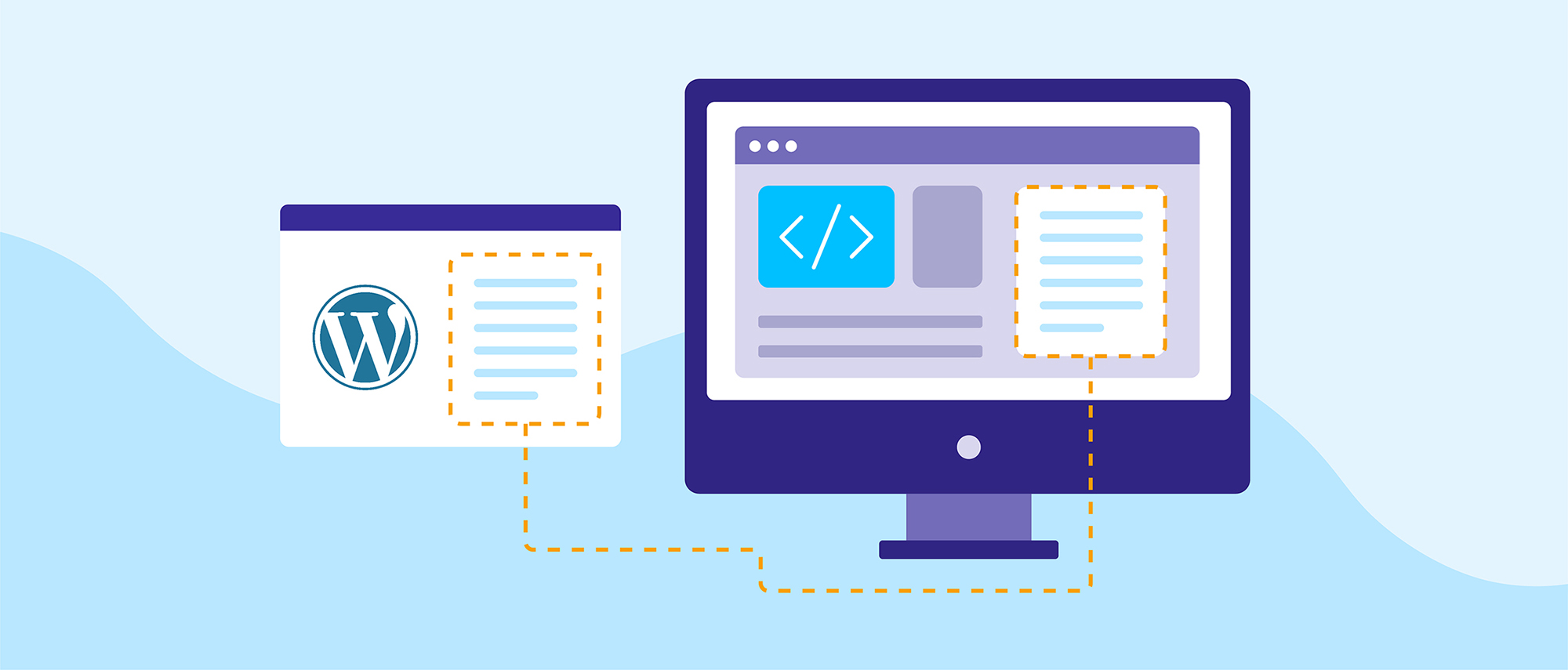
Headless WordPress refers to using the WordPress back-end as a content management system (CMS) but decoupling the front-end, or “head,” from the back-end. In other words, the back-end of a headless WordPress website is used to manage and store content, while the front-end is built using a separate technology, such as React or Vue.js.

This approach allows for greater flexibility and scalability in the front-end, as well as the ability to use modern JavaScript frameworks and libraries to create fast and interactive user experiences.

Advantages of Headless WordPress

  1. Flexibility and Scalability: By decoupling the front-end and back-end, headless WordPress allows developers to use the most suitable technology for the task at hand, rather than being limited to the themes and plugins provided by WordPress. This means that developers can take advantage of the latest technologies and frameworks, and easily make changes to the front-end without affecting the back-end.
  2. Performance: Headless WordPress websites can be faster and more responsive than traditional WordPress websites. This is because the front-end can be optimized for performance using tools like React and Vue.js. Additionally, the use of a headless architecture allows for faster load times and a better user experience.
  3. Greater Control: With headless WordPress, developers have more control over the look and feel of the website. This is because they are not limited to the themes and templates provided by WordPress, but can create a unique design using modern front-end frameworks.
  4. Easier to manage: With headless WordPress, content management becomes more efficient as it allows for a separate team to handle the front-end and the back-end development separately. It also allows for simpler content management as the developer does not need to worry about the look and feel of the website, just the data and the logic for displaying it.
  5. Cross-platform compatibility: One of the greatest advantages of using headless WordPress is its ability to work with multiple platforms like web, mobile and even voice-enabled devices like Amazon Echo and Google Home.

Conclusion

In conclusion, headless WordPress provides a number of advantages over traditional, vanilla WordPress. It offers greater flexibility, scalability, and control, as well as improved performance and ease of management. While there are certainly cases where vanilla WordPress is the better choice, headless WordPress is a powerful tool that can help developers create truly unique and high-performing websites.

As the web and technology are evolving, more and more companies are shifting towards headless WordPress as a way to stay on top of the game and provide better experience to their customers.

If you’re interested in learning more about headless WordPress and how it can benefit your business, feel free to reach out to our headless WordPress experts at Double Up Digital.

Gatsby and WordPress: A Perfect Pair for Building Dynamic Websites

The world of website development is constantly evolving, and today there are many different tools and frameworks available for building modern and dynamic websites. One such framework that has gained popularity in recent years is Gatsby, a free and open-source framework built with React.js that allows developers to create fast, performant websites and web applications. Another tool that is widely used in the world of website development is WordPress, a content management system (CMS) that powers millions of websites.

In this article, we will explore how Gatsby and WordPress work together to create dynamic and powerful websites.

What is Gatsby?

Gatsby is a free and open-source framework that is built on top of React.js, one of the most popular JavaScript libraries for building user interfaces. Gatsby is designed to help developers build fast, performant websites and web applications. It uses a number of performance-optimization techniques, such as code splitting, lazy loading, and pre-fetching, to make sure that your website is as fast as possible.

One of the unique features of Gatsby is its use of a static site generator, which allows for the creation of static HTML files that are then served to the user. This approach has a number of benefits over traditional dynamic websites, such as increased speed and security, as well as better performance on low-end devices.

What is WordPress?

WordPress is a free and open-source content management system (CMS) that is used to build and manage websites. It was first released in 2003 and has since become one of the most popular tools for building websites. WordPress is built on top of PHP and MySQL and provides a user-friendly interface for managing content, including pages and posts, as well as a wide range of features and plugins for adding functionality to your website.

One of the main advantages of using WordPress is its flexibility, as it can be used to build a wide range of websites, from simple blogs to complex e-commerce sites. Additionally, it has a large and active community that contributes to its development and provides support and tutorials for users.

How Gatsby and WordPress Work Together

Gatsby and WordPress can work together to create a dynamic and powerful website. The basic idea is that Gatsby is used to generate the static HTML files that are served to the user, while WordPress is used as the backend to manage the content of the website.

To accomplish this, Gatsby uses a feature called source plugins, which allows it to pull in data from a wide range of sources, including WordPress. The Gatsby WordPress source plugin is used to connect to a WordPress website and pull in data such as pages, posts, and custom fields. Once the data is pulled in, Gatsby can use its powerful rendering capabilities to build the static HTML files that are served to the user.

One of the biggest advantages of using Gatsby and WordPress together is that it allows for the creation of fast, performant websites that still have the flexibility and functionality of a traditional CMS. Since Gatsby pre-builds the HTML files, the website loads faster to the user, and it doesn’t have to wait for the server to generate the pages on the fly. Additionally, since all the content is managed in WordPress, it allows for an easy and familiar way for non-technical users to update the website.

Another advantage of using Gatsby and WordPress together is the ability to add advanced features, such as progressive web apps, offline support, and push notifications, that can make the website more interactive and engaging for users. Additionally, Gatsby’s support for modern web technologies such as GraphQL, a query language for APIs, allows for more efficient querying and manipulation of the data pulled in from WordPress.

One important consideration when using Gatsby and WordPress together is security. While Gatsby’s static HTML files provide increased security over traditional dynamic websites, it’s important to make sure that the connection to the WordPress backend is properly secured. This can be done by using authentication and authorization methods, such as JSON Web Tokens (JWT) or OAuth, to restrict access to the WordPress API.

Conclusion

In conclusion, Gatsby and WordPress are a perfect pair for building dynamic websites. By using Gatsby’s static site generation and performance optimization capabilities, in conjunction with WordPress’s content management and flexibility, developers can create fast and powerful websites that are easy to update and maintain. Additionally, developers can also leverage advanced features such as GraphQL to make more efficient querying, and offline support, to improve user experience. It’s important to keep in mind that security should always be a top priority when building a website, particularly when working with APIs.

If you’re interested in learning more about Gatsby and WordPress, I suggest checking out the Gatsby documentation and the WordPress Codex. You can also find many resources and tutorials on using Gatsby and WordPress together, such as the Gatsby WordPress source plugin and the WordPress REST API.

Do you want to learn more about how Gatsby & WordPress can bring your website up to modern standards? Contact our experts today!

Are Page Builders Better than Custom Built WordPress Themes?

When creating a website with WordPress, one of the most important decisions you’ll have to make is whether to use a page builder or a custom-built theme. Both options have their own set of benefits and drawbacks, and the choice will largely depend on your needs, budget, and experience level. In this article, we’ll discuss the key factors you should consider when deciding between a page builder and a custom-built theme to help you make an informed decision for your project.

What is a Page Builder?

A page builder is a type of plugin that enables users to create custom layouts for their website using a visual, drag-and-drop interface. These types of plugins are popular among users with little to no coding experience, as they allow for the creation of custom pages and posts without the need for code. Some popular page builders include Beaver Builder, Elementor, and Divi.

Benefits of Page Builders

  • User-friendly: Page builders are designed to be easy to use, even for those with little to no coding experience. They typically feature a drag-and-drop interface that makes it simple to create custom layouts and add various elements to pages and posts.
  • Time-efficient: Building a website with a page builder can be much faster than building one from scratch. With a page builder, you can create a basic layout in just a few minutes and add elements as needed.
  • Customizable: Page builders come with a wide range of options and settings that allow for the customization of the look and feel of a website. Many page builders also offer pre-designed templates and modules which can be a great starting point for a website.

Drawbacks of Page Builders

  • Limited flexibility: While page builders allow for the creation of custom layouts, they have limits in terms of design options and flexibility. Templates and modules offered by page builders can be limiting and may not allow for unique designs that stand out.
  • Performance issues: Page builders can cause performance issues on a website, especially when a lot of elements and modules are used. This can lead to slow load times, which can negatively impact user experience.
  • Dependency on third-party plugin: Page builders are not built into the core of WordPress, and instead rely on a plugin, which may cause compatibility issues or plugin deprecation. This can be a problem if the developer stops supporting the plugin in the future.

What is a Custom Built WordPress Theme?

A custom-built WordPress theme is exactly what it sounds like: a theme that is created from scratch for a specific website or project. These themes are usually created by developers with experience in WordPress theme development, and can be customized to meet the specific needs and design requirements of the client.

Benefits of Custom Built WordPress Themes

  • Flexibility: Custom-built themes offer a high degree of flexibility, allowing for the creation of unique designs that stand out from the competition. With a custom theme, users are not limited to pre-designed templates and modules, and can create a website tailored to their specific needs.
  • Better performance: Custom-built themes are optimized for performance and are less likely to cause performance issues than page builders.
  • Control over the code: With a custom-built theme, developers have full control over the code, which allows them to optimize the code for better performance, security, and ensure it is up to date.

Drawbacks of Custom Built WordPress Themes

  • Cost: Building a custom theme can be more expensive than using a page builder, as it usually involves hiring a developer to create the theme.
  • More technical skill required: Custom-built themes typically require a higher level of technical skill, both in terms of development and maintenance. Users will need to have a good understanding of how WordPress works and be able to troubleshoot any issues that may arise.
  • Longer development time: Creating a custom theme can take longer than using a page builder, depending on the complexity of the design and the skill level of the developer.

In conclusion, when deciding between a page builder and a custom-built theme, it’s important to consider your own needs, budget, and experience level. Page builders are an excellent option for users with little to no coding experience, who need a quick and easy solution to create custom pages and posts. However, custom-built themes offer more flexibility and control, and are better suited for users who want a unique design and better performance. Ultimately, it’s a matter of weighing the benefits and drawbacks of each option, and deciding which one is the best fit for your project.

Ready to get started? Double Up Digital specializes in both easy-to-maintain page builder WordPress sites and highly functional custom WordPress themes. Get in touch with us today to learn which might be right for you.

8 Essential Plugins for Your WordPress Site

There are a plethora of advantages to using WordPress for your website. Most notably, the availability of plugins. Ideally, a plugin will extend the functionality of your website and or add new features without having to write custom code. These plugins integrate seamlessly with WordPress and are often backed by a strong community of users. In addition to having a reliable community, the overwhelming majority of plugins are free and easy to use. Generally, a WordPress user is just a few clicks away from being able to drastically enhance the performance of their website. Performance aside, plugins also provide the ability to improve SEO, create/manage forms, prevent spam, and so much more.

Over 58,000 WordPress plugins exist to date. This number can certainly be daunting, which is we have put together a list of a few must-have plugins for your WordPress site.

1. Yoast SEO

The Yoast SEO plugin is by far the most popular plugin on WordPress and for good reason. Search Engine Optimization (SEO) is a crucial component of any good website. Whether you have an online business or even a small blog, improving the quality and quantity of website traffic to your site is the first step in achieving online success. Yoast SEO is packed with features to help you rank higher in search engines, most of which are available for free.

2. Gravity Forms

Every site needs a contact form, which is why we are ranking this plugin so highly. Gravity Forms allows you to create and manage custom web forms and it does so elegantly. The plugin offers an especially user-friendly interface and can handle even more complex features such as online payment collection and easy integrations with other popular platforms. Gravity Forms does not have a free version, but they have multiple levels of pricing depending on your needs, and in our opinion it’s well worth the investment. If you are looking for a free alternative, WPForms is also a good option.

3. Advanced Custom Fields

As websites grow, managing content can suddenly become very complicated making the job of the developer much more difficult. Advanced Custom Fields, or ACF for short, will undoubtedly make managing content on your site much easier. To achieve this, ACF allows the user to create extra content fields to the WordPress edit screens. In turn, these fields will shorten development time and allow your clients to understand the flow of content on your site. Although this plugin is geared for developers, the availability of extensive documentation, a large community of users, and a responsive support team makes this plugin a must-have even if you are new to WordPress.

4. WP Rocket

Website speed is not just important, it’s crucial. 40% of people who visit a website will leave if it takes more than 3 seconds to load. On top of that, if your site is slow in the eyes of Google, prepare for your SEO to plummet. Scary, huh? With WP Rocket’s caching tool you can trust that your site is enjoyable to visitors. WP Rocket is one of the most used and highly-regarded performance plugins in the WordPress ecosystem. According to WP Rocket’s official site, “It will instantly reduce your load time and boost your Google PageSpeed and Core Web Vitals scores. No coding skills needed.” Hard to argue with that.

5. Imagify

We can’t talk about speed or performance without mentioning the magic of Imagify. Imagify is a free plugin that automatically compresses the images on your site, leading to speedy page loads and satisfied visitors. Today images dominate the web, often to the dismay of those without a fast connection. Imagify solves this problem with only a few clicks by reducing file sizes and even automatically converting images to the more web-friendly WebP format.

6. Beaver Builder

The almighty page-builder. Beaver Builder may not be as well-known as its competitors but it certainly can hold its own when you consider how easy it is to build with, especially when outsourcing your WordPress build. Beaver Builder works in real-time as you create/edit the front end of your page. Its built-in responsive tools allow you to create a fully responsive website in no time. There are a myriad of page builder plugins out there, yet none seem to have as intuitive of an interface as Beaver Builder does. Along with an awesome community, it’s the reason why it’s on this list!

7. Akismet

Spam. It’s come a long way since the early days of the web, constantly evolving to be better at… well… spam. The best way to combat spam on your WordPress is to install Akismet. Akismet is a free plugin that is extremely effective at filtering out spam comments on your site. Just download it once and forget about it!

8. Migrate DB

Migrate DB is available in two forms, free and paid. Its free version boasts easy migration and exporting your WordPress database. It’s simple to use, only requiring three steps to reach a successful migration. The paid version, Migrate DB Pro, comes packed with useful features such as the ability to push and pull databases across multiple sites. Either way, you can’t go wrong here.

A Solid Foundation

In many ways, plugins are an extension of your website and brand. They act as tools, just as those of a carpenter or plumber, giving the user the ability to solve problems, improve quality, and save time and money. The plugins mentioned here will give you a solid foundation for SEO, performance/optimization, backups, content management, and more. Once these are installed, you are on your way to success.

Why WordPress Sites are Ideal for SEO

When you’re looking at solutions to help build a stronger web presence for your business, WordPress is sure to come up as a consideration. The open-source content management system was launched in 2003 and primarily served to fill a niche for the growing blog market. Today, WordPress has become a top choice for businesses of all sizes that want to connect with their digital audience and add fuel to the search engine optimization strategy at the same time.

There is no shortage of web building platforms to choose from, yet more than 30% of all websites on the Internet are powered by WordPress. This number includes nearly 15% of the top 100 websites worldwide. So, what is it about WordPress that makes it such an insanely popular choice? The answer to this question can be summed up with three little letters – SEO, or search engine optimization.

What Makes WordPress SEO Friendly?

There are some pretty big brands with sites powered by WordPress. Even though these brands already have some digital clout behind them, you can bet their marketing departments have a laser-sharp focus on SEO. We’re talking about major brands like Sony Music, The New York Times, The Walt Disney Company, and Wired, just to name a few. Go ahead and do a Google search for top WordPress sites – you’re going to be impressed.

Anyway, names like these aren’t going to play around with anything less than a platform that’s seamlessly optimized for SEO, and neither should you. As a small or medium-sized business, your ability to reach out further into your market and build a stronger online presence is key to helping your business thrive. 

Search engines, like Google, are constantly crawling and indexing sites online. What they find determines where you rank in their results in response to a user’s search query. Google has a complex network of more than 200 ranking factors that are taken into consideration when determining a site’s rank. Some of these factors are more important than others, and it’s here that a WordPress site can help you elevate above the crowd.

Portrait of businessman in glasses holding tablet outdoors

WordPress is designed to be user-friendly. This is a pretty broad concept, but one that embodies so much about what makes for successful SEO today. The more quality and value a search engine user finds on your website, the more favorably Google is going to look upon you.

WordPress enhances the user experience (UX) in a number of ways.

  • Speed. How fast your site loads is critical to UX, and there are many elements of web design that can slow down a site. WordPress has created a platform that eliminates these speed-reducing glitches.
  • Mobile responsiveness. A growing segment of your audience is reaching out to you via mobile devices, and it’s a number that’s expected to continually climb. WordPress offers responsive design, which provides a seamless experience across any device.
  • Link building. WordPress makes it easy for you to link to other high authority sites, as well as building in internal links to your own pages. WordPress also makes your site more attractive to others, meaning you’re more likely to earn backlinks to boost your SEO.
  • Content publication. There’s no better vehicle for connecting with your audience and delivering value than high-quality content. Since its inception, WordPress has been at the top of platforms for content delivery.

WordPress Has Mastered the SEO Friendly Theme

Unless you’re experienced in web development, building a website from scratch on your own is something even the most tech-savvy individual would have difficulties with. The process is just so complex, and there are so many details to consider – especially from an SEO perspective. Fortunately, for those whose talents are outside the realm of web development, WordPress has already taken care of all the details.

WordPress offers an incredible selection of templates and themes, each already fully optimized for SEO. Most WordPress themes already contain the proper HTML markup that search engine crawlers are looking for. Not to mention that each theme is already designed to meet all the SEO expectations that were mentioned above.

Selection of Plugins for Optimized SEO

One of the biggest perks that WordPress sites offer from an SEO perspective is the fact that there are literally hundreds of plugin options created to enhance your search engine performance and the user experience all at the same time.

For instance, plugins like Yoast, SEMRush, Google Keyword Planner, and Broken Link Checker provide you with all the tools you need to boost your search engine performance and achieve noticeable results. At the end of the day, WordPress offers a plugin to make just about every component of SEO and user experience easier to handle.

internet security and data protection concept, blockchain and cybersecurity

Top-Level Security Features

With all the advice you hear floating around about the best SEO tactics, you don’t hear enough about security. Here’s the thing, digital consumers have become increasingly cautious (and with good reason) when it comes to engaging with a new website, especially if it’s an e-commerce site or they’ve been asked to provide any degree of personal information. If a lack of security features is preventing traffic from moving to your site, and lingering there, then that’s a thumbs down for your SEO.

As a smaller business, you might not think that you’re a major target for a cyber-crime, but that’s the exact type of mentality that hackers find appealing. If your site gets hacked or lands on a spam list somewhere, it can be a difficult, uphill SEO battle to recover from. The WordPress platform is very secure, and they’re dedicated to continually monitoring and improving upon their own security standards. This gives you an instant leg up from a security standpoint.

Experts in WordPress SEO

Do you have a WordPress website and want to know how to maximize the results you get from search engine optimization? Are you a new business that’s looking for the best platform to build a successful business website that’s designed for SEO? We’re the web design team that also happens to be experts at optimizing WordPress sites for SEO. Reach out to Double Up Digital today and speak with one of our WordPress experts today.

The 5 Best WordPress Plugins for Your Website

A WordPress website is like a high-quality vanilla ice cream. Sure, it’s pretty solid on its own, but with the right accompaniments, it becomes even better. The trick is knowing what those accompaniments are and being able to recognize when you’re at risk of loading on too much and losing the authenticity of the vanilla flavor altogether. With your WordPress website, plugins are the toppings, and the right ones can transform your site into something great. That’s why we narrowed down the best WordPress plugins.

Illustration of a computer sitting on a desk symbolizing web design

The Best WordPress Plugins

With so many options, it’s easy to feel a little overwhelmed. So, here are 5 of the best plugins available to add life and function to your WordPress site today.

WPForms

Every website, no matter how big or small needs forms. Forms are what bridges the connection between your business and leads, and they’re how customers are most likely to contact you. You might have a need for several types of forms in your web design, including everything from contact and order forms, to surveys and subscription opt-in forms.

The challenge is that forms can require some knowledge of coding to create from scratch. The WPForms plugin eliminates all of that with a drag and drop form builder that allows you to create the exact form you’re looking for in a matter of minutes.

Yoast SEO

A strategic approach to SEO is insanely important to the success of your WordPress website. Smaller businesses don’t always have the resources to invest in learning the ins and outs of search engine optimization, which makes a plugin like Yoast SEO that simplifies building visibility online so important for your site. Yoast takes care of the more technical aspects of SEO, which is why you’ll find it on practically every list of the best WordPress plugins.

Constant Contact

Ready to dip your toes into email marketing? The idea of generating an email list that’s worthy of your efforts can be daunting, and that doesn’t even begin to touch on creating templates and customizing content for your email audience. Constant Contact is the WP plugin that makes it super easy to amp up your email marketing game. Template options are numerous, and content and promotional ideas are handed to you, making your email marketing efforts a breeze.

Beaver Builder

Have you been looking at your WordPress web design and thinking it needs a little pizazz? The Beaver Builder plugin provides you with the capability to create the WordPress site of your dreams without the need for a single drop of coding knowledge. The drag and drop page builder lets you customize your design and really make your site unique to your growing business.

VaultPress

In today’s digital age, security is priority one for your WordPress website. VaultPress is the WP plugin that creates automated backups for your site, so that it’s one less thing you need to worry about. VaultPress also syncs all your media files, including all your content and every user response to it, and protects against the efforts of unsavory hackers. If something does go wrong, you can restore your WordPress website in the blink of an eye, minimizing potential downtime.

Take The Best WordPress Plugins to the Next Level

Do you have a WordPress website that you would like to optimize for performance? Our web designers know exactly how to drive results for your business – including which WordPress plugins are non-negotiable for reaching your goals. Contact Double Up Digital and speak with one of our experts in web development today.

The Perfect WordPress Development Workflow

With the ever-increasing popularity of WordPress, many developers find themselves working on larger sites that require a lot of maintenance work. Working directly off of the live site for maintenance work is a terrible idea for these larger sites, or even smaller sites for that matter. If you’ve stumbled across this article, it’s likely that you’re guilty of this and you’re in need of a better workflow. So let’s get started!

Local, Staging, Live

Every website you work on should at a minimum have a local version, staging version (for client review and QA), and a live version. The work that you do should flow throw these variants in sequence as you progress through the development cycle of your project. Everything from adding a new widget to redesigning the entire site should be done in this order. 

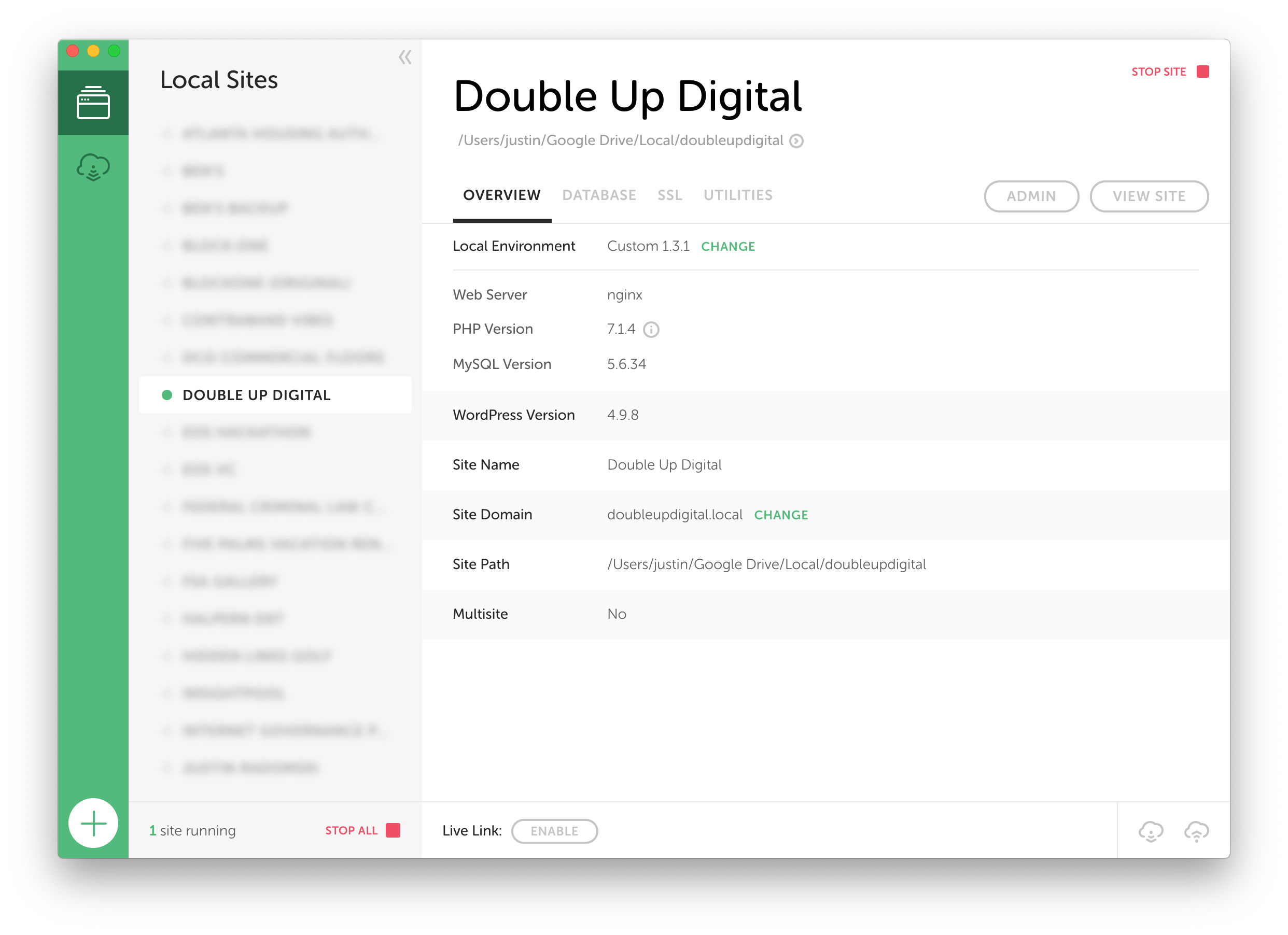
Local by Flywheel Window

Local WordPress Development

In the past, many developers have opted for a command line version of local development using tools like Vagrant, VVV, or XAMPP. While these are effective tools for local WordPress development, I find myself gravitating more toward actual user interfaces to accomplish the same job. That’s where Local by Flywheel comes into play. Local allows you to create WordPress installations directly on your computer with just a few clicks. You can even back up your live WordPress site and drag it into the Local window to get started with an exact copy. If you’re a Flywheel customer, you can even push and pull your entire website in one click. Pretty simple.

Once you’ve got a working local copy of your WordPress site, it’s time to get to work. Custom PHP modifications have just become very easy for you. With a local site, you’re able to modify the theme files and see the changes in real-time without having to deploy through Git or send them back to the server via FTP. Instead you’ll have the ability to test everything right there on your local URL.

So why the extra effort if you’re only changing something in the WordPress dashboard? Well for starters, you’ll never run into the issue of breaking your live site with a bad modification since your local site runs completely independently from your live site. You can break it as many times as you want and you won’t have to panic of what you’ve done. Just get in there and find out what went wrong. Viewers of your website will never notice anything has changed until the fully tested version has been deployed.

Push it to Staging

Staging sites are the middle point between local & live. It’s where you will make sure that your changes play nice with your website’s server and show the changes to your client before pushing them live. For this reason, it’s important to make sure that your staging site is located on the same server as your live site. Differences in the server environment between staging and live can cause you to run into unanticipated issues. For example, something that works on PHP 5 may not play so nice with PHP 7. The PHP version of your staging site should ALWAYS match that of your live site. 

So how do you get your local changes to your staging site? There’s many ways. Often times developers will create a full backup of the local site and import it into the staging server. I prefer to do it in pieces. 

Plugins

Plugins are typically third party and therefore don’t require any version control on your end. For this reason, I choose to push all new plugins to the staging site with FTP. While those are taking their time uploading, I can freely move on to the next steps.

Theme

If you’re working with a custom WordPress theme, you should be tracking changes using Git. Using a tool like DeployHQ, you can easily deploy changes from your Github/Bitbucket repository to both your staging site and your live site. 

If you’re using a third party theme, you shouldn’t be modifying the core files of the theme, so just toss that onto the staging server with FTP. If you’re making changes to a child theme, you can either use version control and a deployment method, or upload your modified child theme to the server with FTP.

Media Files & Database

Wondering why I grouped these together? Easy. The plugin that I use for database migrations, Migrate DB Pro by Delicious Brains, also handles media files! Any modified media files can be pushed/pulled from one WordPress installation to another along-side the database with one click. Super easy!

Let’s Take it Live!

Once you’ve fully tested your changes on the staging site, it’s time to push everything live. Hosting providers that have built-in staging environments often have a one-click feature to make this happen. If you don’t have that option, repeat your process for migrating from local to staging, but this time do it from staging to live. Then you’re done! 


Need some help with maintenance on your WordPress site? We’d love to hear how we can help out!

The Value of Quality WordPress Hosting

Everyone knows what a website is, but few people know where they live or just how important that home is when it comes to how users interact with a website. Performance, security, and search engine rankings are just a few of the many things that are impacted by your choice of hosting provider. 

So how do you choose the right hosting provider, and what are you getting that justifies the cost of a more expensive provider? After my experience with dozens of web hosts over the years, I can provide a few answers to put your mind at ease.

Managed vs. Unmanaged

Managed and unmanaged are hosting terms that you’ll see all across the web. What does it mean though? Essentially it means exactly what it sounds like. Managed hosting providers take care of the more difficult aspects of running a web server such as setting up Linux environments and connecting databases to your web applications. With an unmanaged hosting provider, you would be forced to take on these tasks yourself. Without proper guidance or experience, taking this on yourself could lead to massive security holes or endless frustration and headaches. It may be worth the extra few dollars per month to get that off your plate.

But I want it to go faster!

Speed. We want more speed. While website speed is heavily influenced by how your website is built, your web host can also play a role with a couple of factors. Plugging your website into Google’s PageSpeed Insights tool can help you determine exactly how slow your website is and what you can do to fix it. Sure, most of the problem items can be remedied by removing excess plugins, optimizing images, and some code tweaks on your existing web host, but the following problems are directly influenced by your hosting provider.

Caching

Server-side caching can make a huge impact on your site’s load time. WordPress is powered by PHP, and as a result, the entire page must be generated on the server before being delivered to the end-user’s browser. Server-side caching resolves this by storing a copy of the page on the server and skipping that page generation each time the page is loaded by a user, ultimately leading to a drastically reduced server response time. If you want great performance on your WordPress site, do not choose a hosting provider that doesn’t offer a layer of caching. 

CDN

Content Delivery Networks (CDNs) can provide additional website performance by distributing your media files across a global network of servers. Like everything else in life, data takes time to travel long distances. Reducing the distance between your website and your users will reduce your page load time, which is exactly what CDNs aim to do. Good web hosts will provide one-click CDN access to your website at little to no cost. It’s a no-brainer and a quick easy fix to boost your page speed score.

Security

Did you know that nearly 30% of all websites are powered by WordPress? While this has led to a fantastic community of resources and third party add-ons, it has come with the downside of security breaches. Unless you’ve taken measures to protect your WordPress site, you’re likely exposed to a community of hackers that know more about WordPress and how to break in than your developers may know. 

What can you do to keep your website safe? Avoid weak passwords, change your wp-admin URL, and choose a web host that lives and breathes WordPress. I can’t stress enough how much that last point matters. Trusting your WordPress site on a shared web host like Bluehost or GoDaddy is the equivalent to removing all of the locks the doors on the exterior of your house. Flywheel, Pagely, and WP Engine are just a few examples of hosting providers that specialize in WordPress and take extra measures to ensure that your website stays safe.

SEO & Google

Moving up in search engines is becoming more and more difficult as Google decides what factors influence rankings. One thing that is known for certain is your website’s performance and security plays a large role in where you rank. Reducing your server response time with server-side caching can cause you to see a boost in rankings. More recently, Google has started penalizing sites that don’t have a valid SSL certificate. A good web host will have an easy and free method for installing SSL certificates allowing you to avoid the loss in rankings.

Decision Time

Moral of the story, don’t skimp when it comes to where you put your WordPress site. It can be tempting to go with a shared hosting provider when the plans cost less than a cup of your morning coffee, but the downsides aren’t worth the cost savings.

Double Up Digital partners with Flywheel to provide fast and secure hosting to all of our clients. Leaving the complexities of server management to professionals that know the ins and outs of WordPress allows us to focus on what we do best, and that’s creating amazing website experiences


Tired of trying to figure out WordPress hosting yourself? We can help you give your website a home that will make it perform at its best.

Beaver Builder vs. Divi: Building and Styling

“Well, how do I know which theme to choose?”

This is the first question uttered by every new web developer creating his/ her site with a page builder. There are a multitude of options on the market, each one with different styles, features and modules. To answer this question, I dove into some research and used different ones on different sites. This experience made me narrow down my choice to just two: Divi and Beaver Builder.

I know a lot of people have very strong loyalties to their page builders, but stick with me here. In the end, after building multiple sites with each, I can easily say Beaver Builder is the better bet (try saying that five times fast). Here, I’ll explain why because I’m loyal too, but I’m not biased.

Modules

Let’s start with the most basic aspect of the page builder — the module options a user has to create his/ her site with and how these modules can be incorporated into a page. While both page builders have a large selection to choose from as well as the ability to create a custom module, Beaver Builder pulls ahead with more options. When it comes to settings and options to style a module, Divi has built a more appealing interface, but Beaver Builder’s simplicity works to its advantage. The main goal of both is the help the user understand what a module can do and what options can be changed for maximum customization. Both page builders accomplish this, but with some slight differences.

Options

Divi offers 37 standard modules ranging from images to audio. With Beaver Builder, there are 29 standard modules and the 12 WordPress modules that support widgets. This means there is an endless amount of module options just a widget plugin installation away — something Divi is yet to offer.
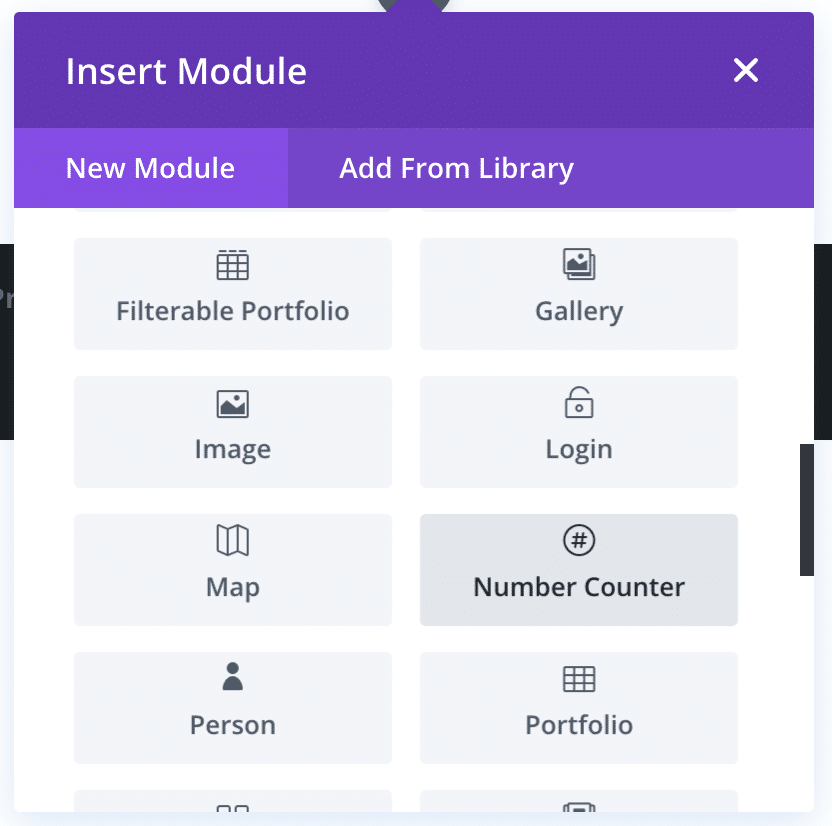
Both page builders do offer the option to create your own custom module through some PHP and determination. This is an extremely useful tool when creating complex and highly customized sites. You can find documentation for building a custom Divi module here and documentation for building and custom Beaver Builder module here.

Both options offer plugins to install more module options as well, with Beaver Builder having a wider range of options to choose from. This allows the user to add more advanced module packs without having to deal with the headache of creating them all from scratch.

Settings

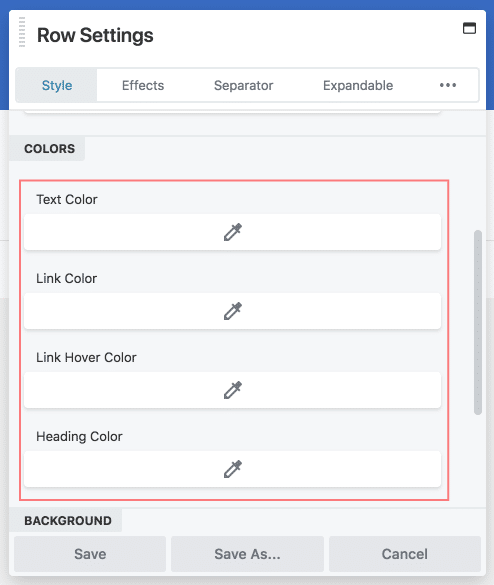
Divi takes on the more literal approach when it comes to their settings menu. If you want to add a background image, there is a picture of a tiny framed photo of a mountain range to represent this option. Beaver Builder, on the other hand, it very simplistic and plain. This is a more straightforward approach and leads to less confusion about the options available.
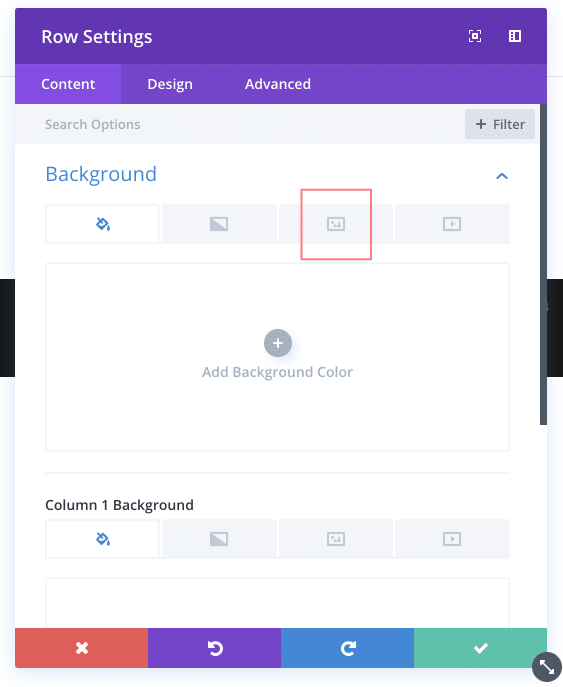
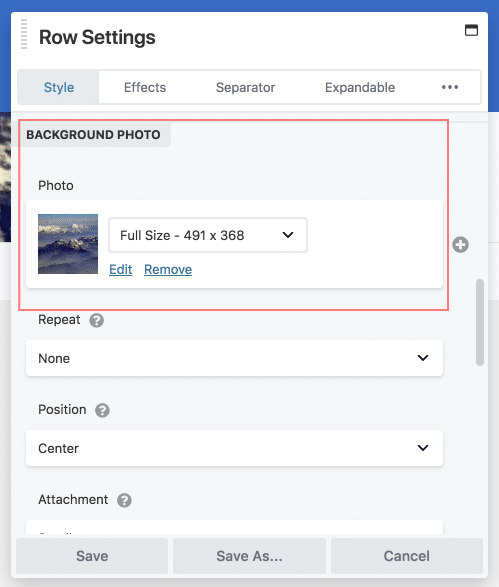
Here is another example from the color selection options of each page builder.
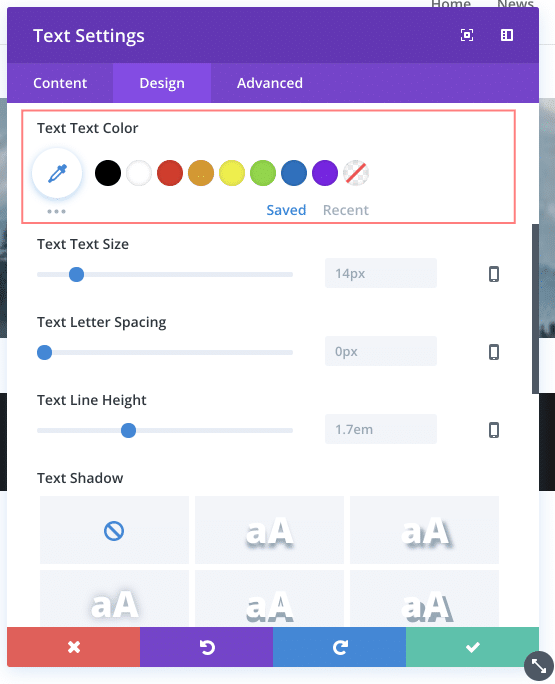
Now that’s a lot of gray.

While Divi may have the more colorful option, Beaver Builder offers the most options in a clear and concise way. Colors and imagery really just come down to personal choice, but a range of options is something everyone wants in their page builder, especially when creating multiple sites and/ or servicing multiple clients.

Depending on what kind of site you’re building or how many will determine the best page builder for you. If you’re new to using page builders, Divi’s colorful interface and use of icons to represent settings and modules is helpful in determining what changes to make. If you’re looking for more options in customization, Beaver Builder is the way to go.  

Custom styling

When it comes to styling your web page, the page builder might not offer every setting you want to change. This is where the custom styling methods come in handy. With just a little CSS, you can have full control over your page and its modules. With each page builder, there are different ways of achieving this.

Divi and the advanced settings tab

Let’s say you have a column that you want to grow in size when you hover over it or a button you want to change color when clicked — these styles would have to be added into custom CSS because these are not options found on the settings pop up. In Divi, the way to do this is through the advanced settings tab in the custom CSS box or by giving the row, column or module and class or ID and using that for styling purposes in the custom CSS settings of the page on the backend, Customizer or the Divi Theme Options settings back on your dashboard.
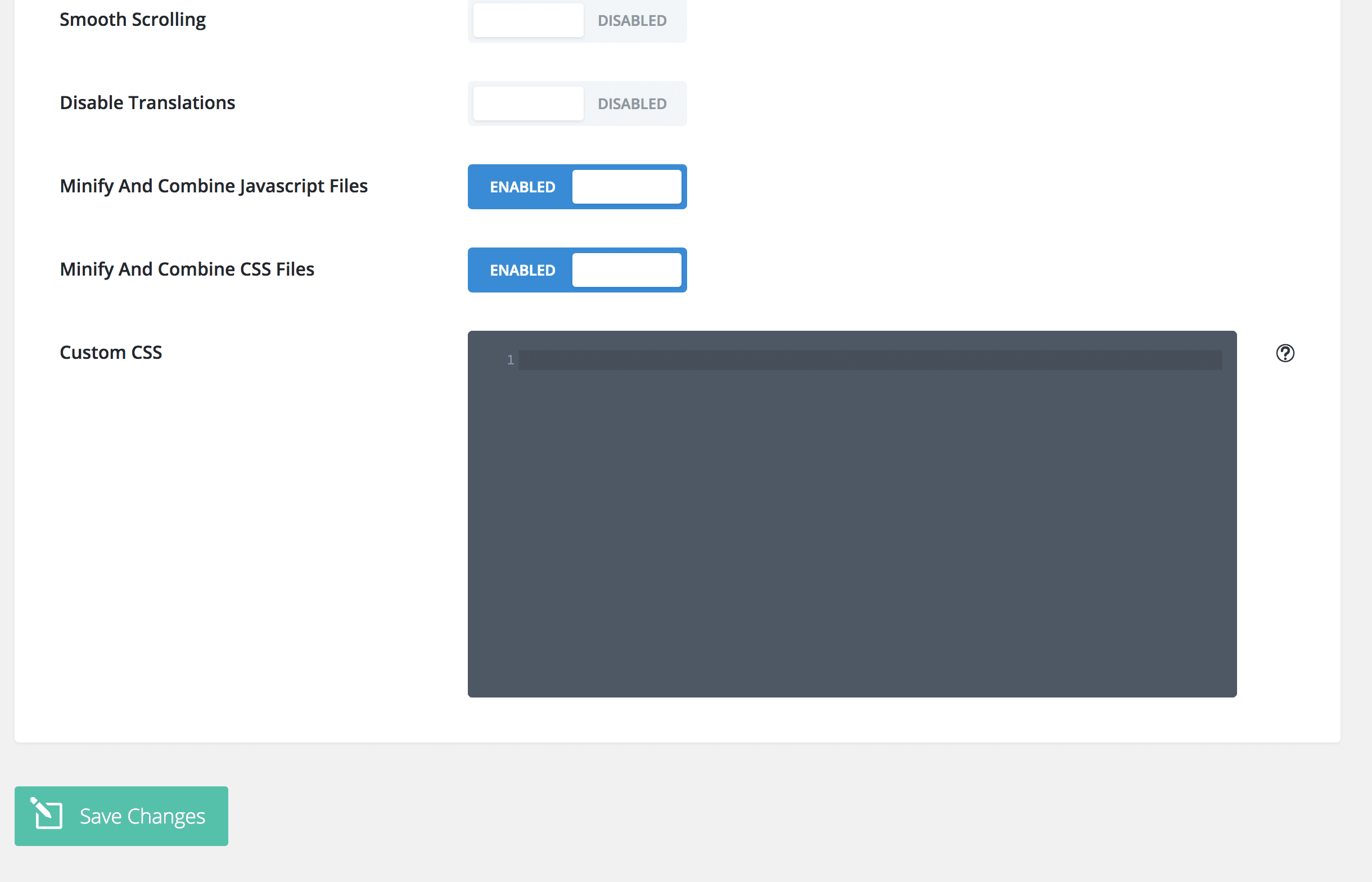
There are a few complications one could run into using this method of adding custom CSS. One example is the issue of changing a line of CSS when you don’t know where it’s coming from. Sure, you can go through the lines of code in the inspect tab (which is an issue that will be addressed later in this article), but chances are the user will find it hard to target the exact row, column or module with the specific change. Adding custom CSS to individual pieces of the puzzle will only make it harder to go back to later during editing. If you create multiple sites for many clients, this is especially easy to lose track of.

The other option of editing through the backend is not efficient either. To make a simple edit would require remembering the place, including all previous classes to target the exact module piece, and editing bit by bit and checking each time to see if it worked. This is not an efficient way to edit CSS on your site.

Divi has tried to combat this problem by adding as many settings as possible and adding the custom CSS boxes on each module, but when creating custom sites that require a lot of extra CSS, it can quickly become a nightmare of remembering complex classes and the placement of all of your styles.

Beaver Builder’s Layout and Global CSS

Beaver Builder, on the other hand, has brought the backend editor to the frontend. By simply looking to the upper lefthand corner, the user can access either the single page’s CSS or global CSS styles to cover the entire site. This makes it easier to keep track of, edit and revisit over time.
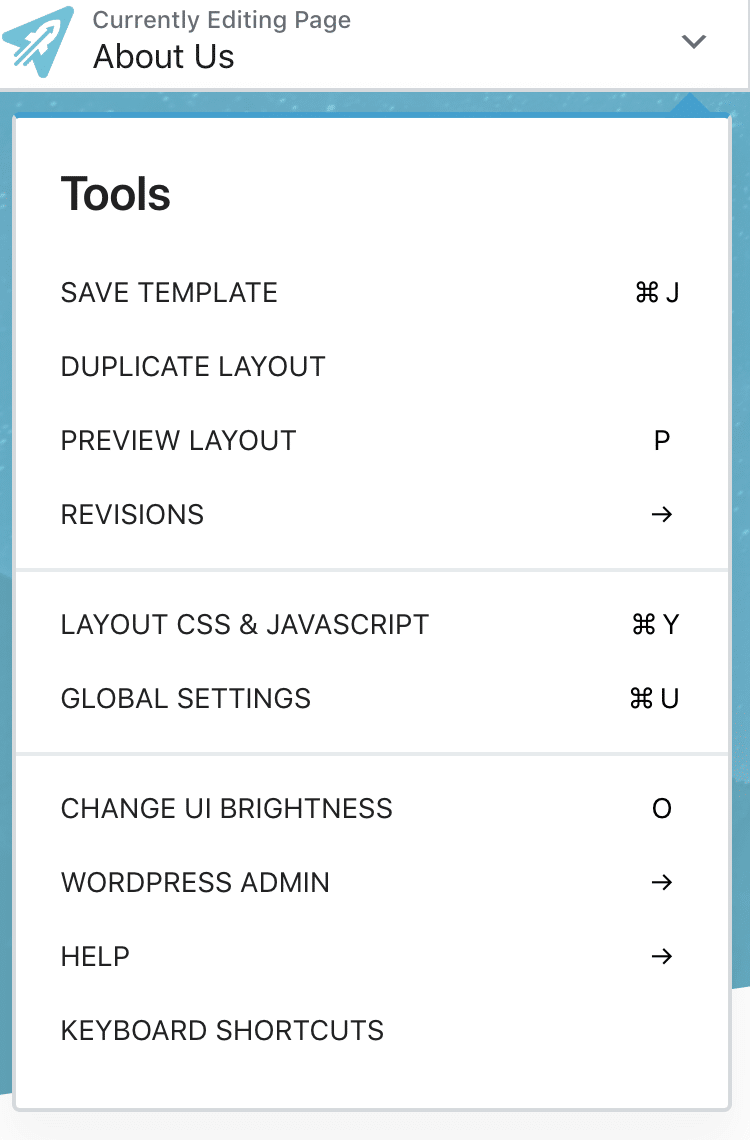
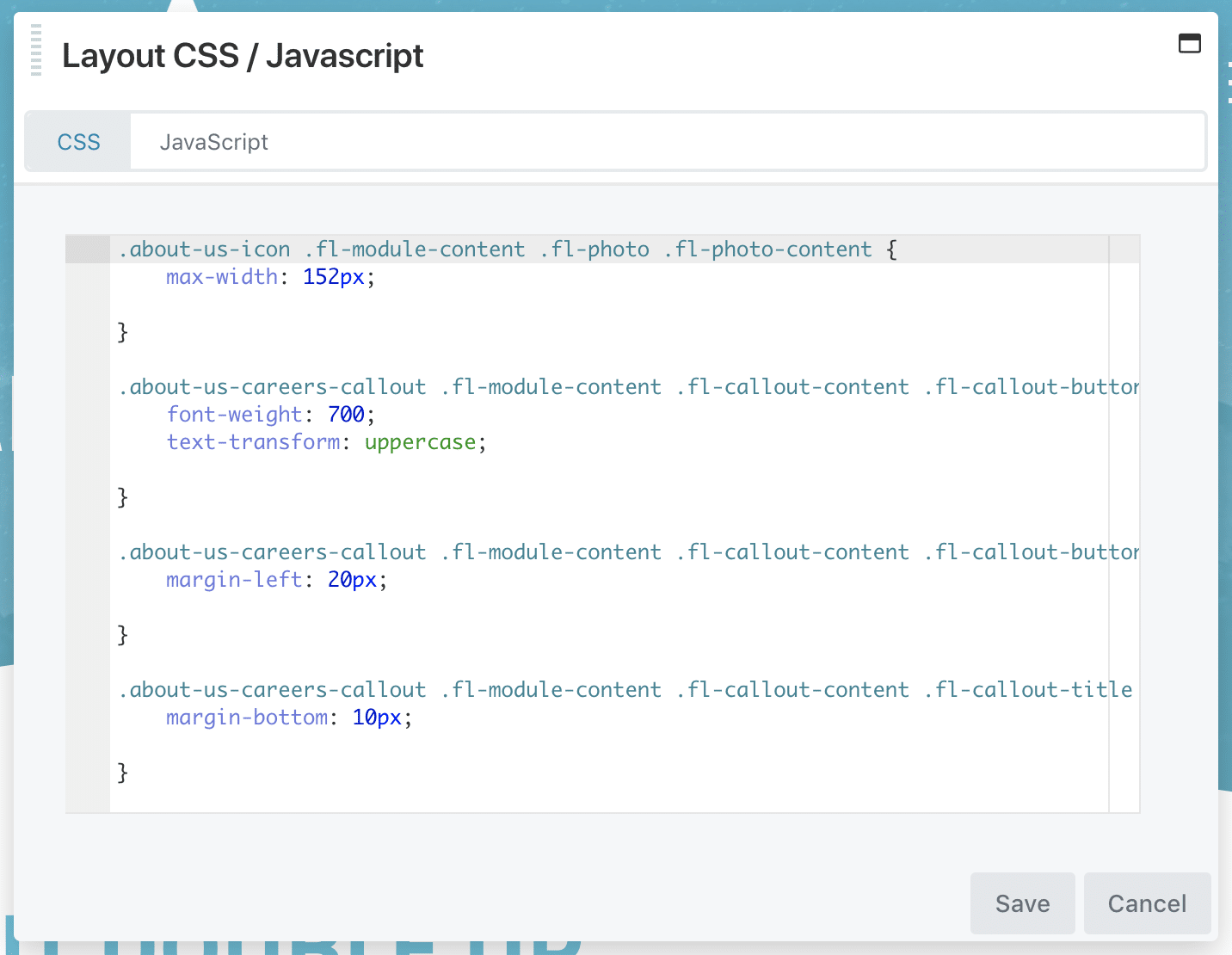
The Layout CSS tab contains the styles of the single page. This is helpful when dealing with simple styles you do not want overwritten by others in the site.  Setting global styles comes in handy for overarching changes such as buttons, headings or common animations. Setting styles in this tab is the same as adding them in the custom CSS tab of the Customizer, but the benefit of completing everything here is that you are able to see these changes in real time and walk through the classes in inspect mode.

Code left behind

Knowing how to add custom CSS is one thing, but being able to find your exact element in inspect mode is another challenge. When building a page with a page builder, the user isn’t writing lines of clean code, but rather letting the builder write it for them. Each page builder has its own classes, its own structure and its own way of organizing files.  It’s up to the user to be able to decipher this code to make his/ her own edits.

Divi’s code is cluttered with extra divs and cryptic classes that make it difficult to find the exact module you are trying to target. In beaver builder, the structure is the same on every module and the divs are easy to follow (at least somewhat easy to follow), making it less of a challenge to find that class to call in the CSS.

If you are someone not looking to edit too many elements through custom CSS, then this may never be an issue, but for someone making custom sites in the multiples, it can become a huge roadblock in creating the perfect site.

Summary

  • Divi – 37 module options
  • Beaver Builder – 41 module options
  • Both offer addition module plugins
  • Both offer option for custom module creation
  • Divi takes on more imagery and color to convey their settings in an easy to understand manner
  • Beaver Builder uses a simple design to make a clean settings option pop up
  • Beaver Builder offers more options overall, but Divi incorporates color and imagery to make a page builder any level of developer can understand
  • Custom CSS can be completed in Divi through code added to individual elements or through the  Custom CSS in the theme options
  • Custom CSS can be completed in Beaver Builder through the layout CSS (for individual pages) or global CSS (to apply to the entire site)
  • Divi leaves behind code that is more difficult to understand
  • Beaver Builder leaves behind code that is more organized and easy to reference